Blog ·
How to Make AI Meme Videos: Why Sound Effects Make or Break the Joke
AI makes the scene. Sound sells the joke. Here is the workflow that connects the two.
A cat in full knight armor, turning slowly toward the camera in golden light. Not long ago that shot meant a 3D artist and a free afternoon. Today it takes one prompt and a minute of waiting. AI image and video generators have made the visual half of a meme video almost free, and that is exactly why so many AI clips get scrolled past: everyone can make them now.
The other half is sound. Generated clips often arrive silent, or with a vague ambient hum that doesn't match anything on screen. The gap between "huh, neat" and "I have to send this to someone" is usually one well-timed Vine Boom on the exact frame the cat turns around. This guide covers the whole workflow: planning the joke, generating the scene, and building the soundtrack that makes it land.
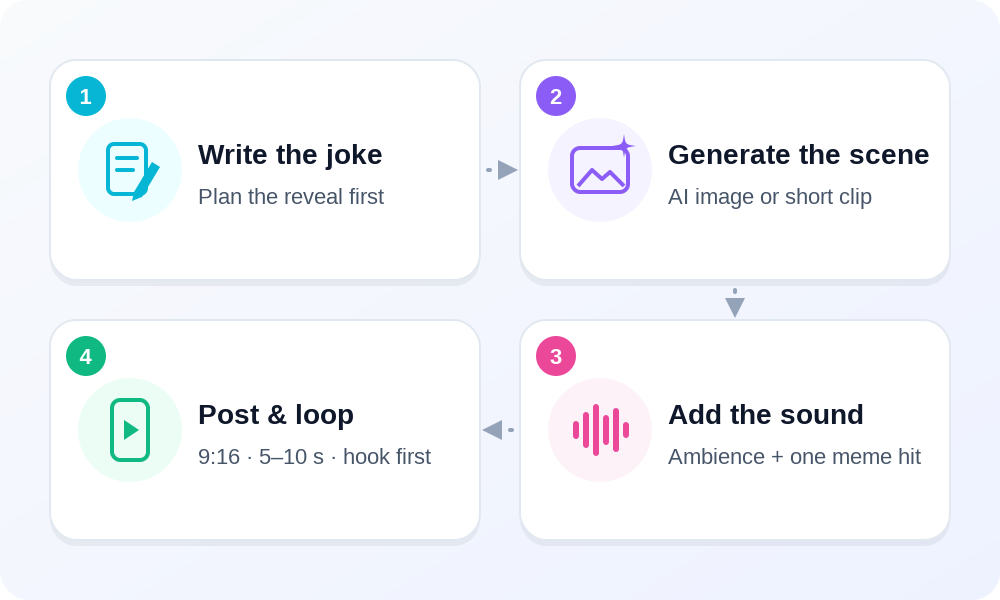
1. Write the Joke Before You Write the Prompt
The most common mistake is generating something that looks impressive and then hunting for a joke inside it. Flip the order. A meme video needs a setup and a payoff, and you should know both before you type a single word of prompt.
Three structures cover most of what works:
- Normal becomes absurd. A nature documentary shot of a lion, except the lion is wearing reading glasses.
- Huge buildup, tiny payoff. Epic cinematic camera move, swelling tension, and the reveal is a single sad potato.
- One wrong detail. A completely serious scene with one thing that does not belong, held long enough for the viewer to notice it.
Write the joke as one sentence, for example: a knight draws his sword with full cinematic gravity, and it's a baguette. Now you know exactly which frame is the reveal, and your prompt only has to describe the setup and that moment. Aim for 5–10 seconds in vertical 9:16 if the clip is headed for TikTok, Reels or Shorts.
2. Generate the Scene
For this workflow you want a tool that handles both stills and motion. AnyScene is an AI image and video generator, which fits well here: describe the scene in a prompt, generate a still image first to lock in the look, then move on to the video clip once you know the style works. Iterating on stills is much faster than re-rolling whole clips, so you burn fewer attempts on a scene that was never going to be funny.
A few prompt habits that make the editing stage easier:
- Describe the reveal moment explicitly. "The character slowly turns to face the camera" gives you a clear beat to put a sound on. Vague prompts give you vague motion.
- Ask for simple camera moves. A slow push-in is the classic meme camera. Complicated motion is where AI clips start to wobble.
- Leave a pause before the payoff. A second of stillness right before the reveal is where your riser goes.
- Generate more takes than you need. Pick the one where the reveal frame reads most clearly, not the prettiest one overall.
Don't skip stills as a final format either. A single AI image with a slow zoom and the right sound is a perfectly valid meme video. The dramatic zoom was a meme long before AI video existed.
3. Find the Beat, Then Add the Hit
Every meme video builds to one frame. Before you add any sound, scrub through the clip and mark that frame: the moment the cat turns, the baguette clears the scabbard, the potato comes into focus. Everything in the soundtrack is arranged around it.
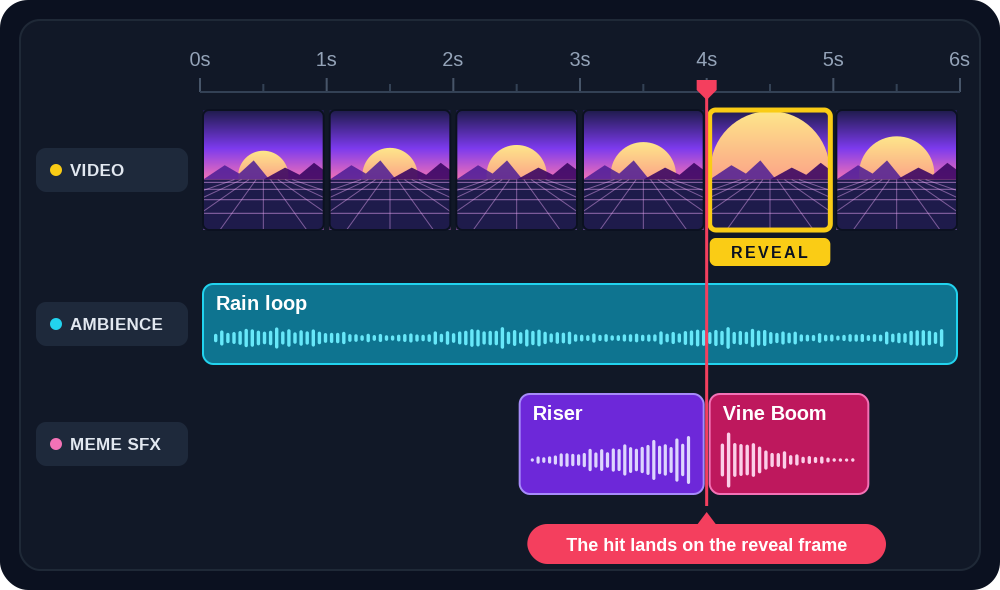
- Build into it. Start a riser or tension riser one to two seconds before the reveal and let it end right where the hit begins.
- Land the hit on the frame, not near it. Zoom into the waveform and line up the loudest spike with the reveal, not the start of the file. Many sound files carry a few milliseconds of silence at the front, and being off by even a few frames makes the joke feel late.
- Pick the hit that matches the tone. A Vine Boom for deadpan reveals, a trailer hit when the scene is playing it epic, a dramatic sting for mock suspense.
If you want to go deeper on timing and layering, our guide to using meme sound effects in videos covers it in detail.
4. Give the Scene a Sound World
AI scenes are often fantastical: neon cities in the rain, spaceships, castles with dragons. Without ambience they feel like a screensaver. A quiet bed of matching sound is what convinces the viewer that the place is real, and that contrast is what makes the absurd detail funny.
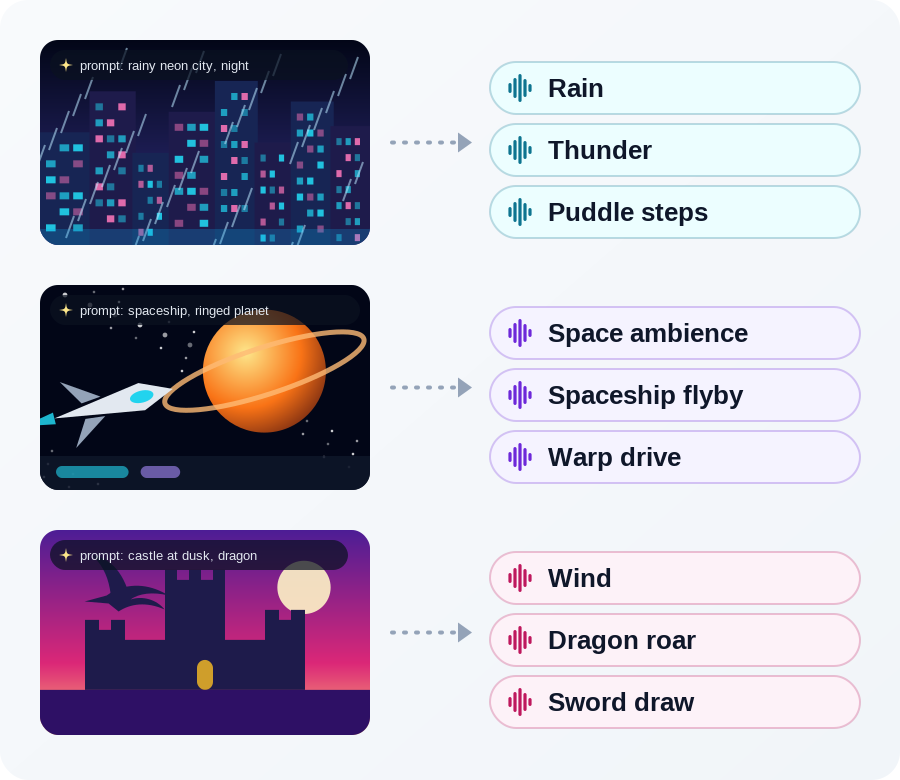
- Rainy cities and night streets: rain, a distant thunder rumble, footsteps in puddles.
- Sci-fi and space: space ambience, a spaceship flyby, warp drive, a hologram shimmer.
- Fantasy: wind, a dragon roar, a sword unsheathe (essential for the baguette knight).
- Nature: forest ambience, ocean waves, a crackling fire.
Keep ambience low: it should be felt more than heard. If you consciously notice it on the first watch, turn it down. And if the generated clip came with its own audio, make a call. Keep it if it fits the scene, mute it if it's generic. Two ambience beds fighting each other just sound muddy.
5. The Meme Sound Cheat Sheet
Once the scene is generated, most AI memes fall into a handful of situations. Here is the sound for each:
| The moment | The sound |
|---|---|
| Deadpan reveal, slow turn to camera | Vine Boom |
| Something falls in the most dramatic way possible | Metal pipe |
| The plan fails | Sad trombone or Bruh |
| Freeze frame, "you're probably wondering how I got here" | Record scratch |
| Nobody reacts | Crickets |
| Overly emotional moment | Sad violin |
| Victory, hype, glow-up | Airhorn or magic sparkle |
| Cartoon hit on the head | Bonk |
6. Mistakes That Kill AI Meme Videos
- Too many sounds. One hit per joke. If every second has a sound effect, none of them land.
- Letting the clip run too long. AI video tends to drift the longer it goes: hands multiply, faces melt. Cut before that happens, unless the melting is the joke.
- A hit that is a few frames late. A late sound plays like a reaction to the joke instead of part of it. Align to the waveform peak, every time.
- A chart hit under the clip. Copyrighted music gets videos muted or claimed on most platforms. Sound effects and ambience carry the joke without that risk, and most of the effects in our library come from CC0 recordings, with the license and source listed on each sound page.
- Never checking on a phone speaker. Most viewers will hear your video through a phone. Low rumbles vanish there, so make sure the hit still reads.
Putting It Together
Here is the full recipe for the baguette knight. Generate the scene with AnyScene's AI video generator: a knight at dusk, slow push-in, hand moving to the hilt. Lay a wind bed under the whole clip. Start a riser as the hand closes on the grip, play a sword unsheathe as the blade comes out, and drop a Vine Boom on the frame where it turns out to be bread.
Ten seconds, four sounds, one joke. The AI did the hard visual work, and the sound design is what makes people watch it twice.